
Djanogly
City Academy
Curriculum
Learning at Home
If your child is isolating due to Covid, they can access lessons via Microsoft Teams once they are well enough to do so, unless the lesson is an exam or a practical.
Statutory Information
To view our remote learning plan, please click on the link below
Using Microsoft Teams
We will be using Microsoft Teams to deliver lessons remotely.
You can use Microsoft Teams on your mobile phone / tablet / PC or laptop. Please ensure your device has a camera, as some older laptops or PC's may not have one. In which case, you will need a separate webcam.
To improve the quality of the online meeting, it is recommended that you use headphones with a built in microphone, e.g. the one you would use with a mobile phone or a gaming console. If you do not have any headphones with a built-in microphone, then please just use normal headphones as this will help reduce audio feedback.
How to download Microsoft Teams
Installing Teams on your Windows PC or laptop
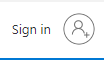
- On your web browser, go to office365.com and select sign in in the top right corner of the screen.
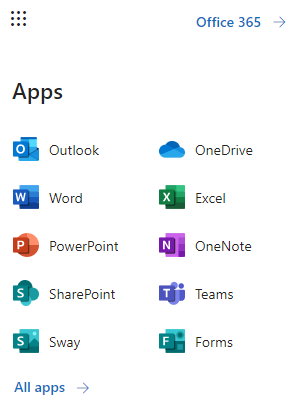
- Select the menu waffle in the top left of your screen and and choose Teams
- Select Get the Windows app
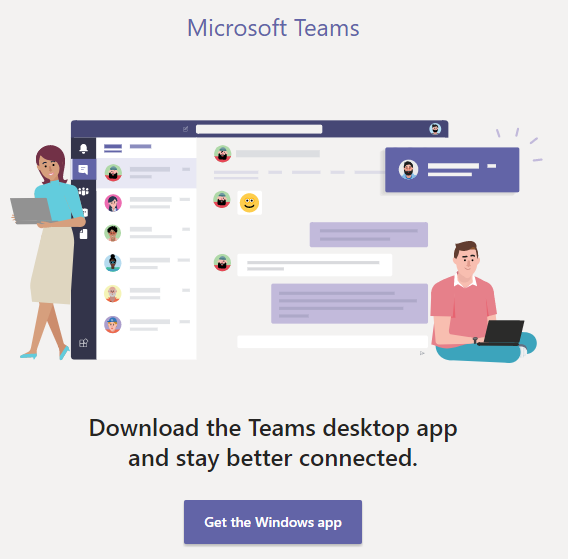
- Once the Teams setup file has downloaded, open and run the file.
Installing Teams on your Apple device (iPhone or iPad)
- Open the App store on your iOS device

- Search for Microsoft Teams

- Press Get

Installing Teams on your Android device
- Open the Google Play store on your Android device

- Search for Microsoft Teams
- Press Install

Joining a meeting on Microsoft Teams
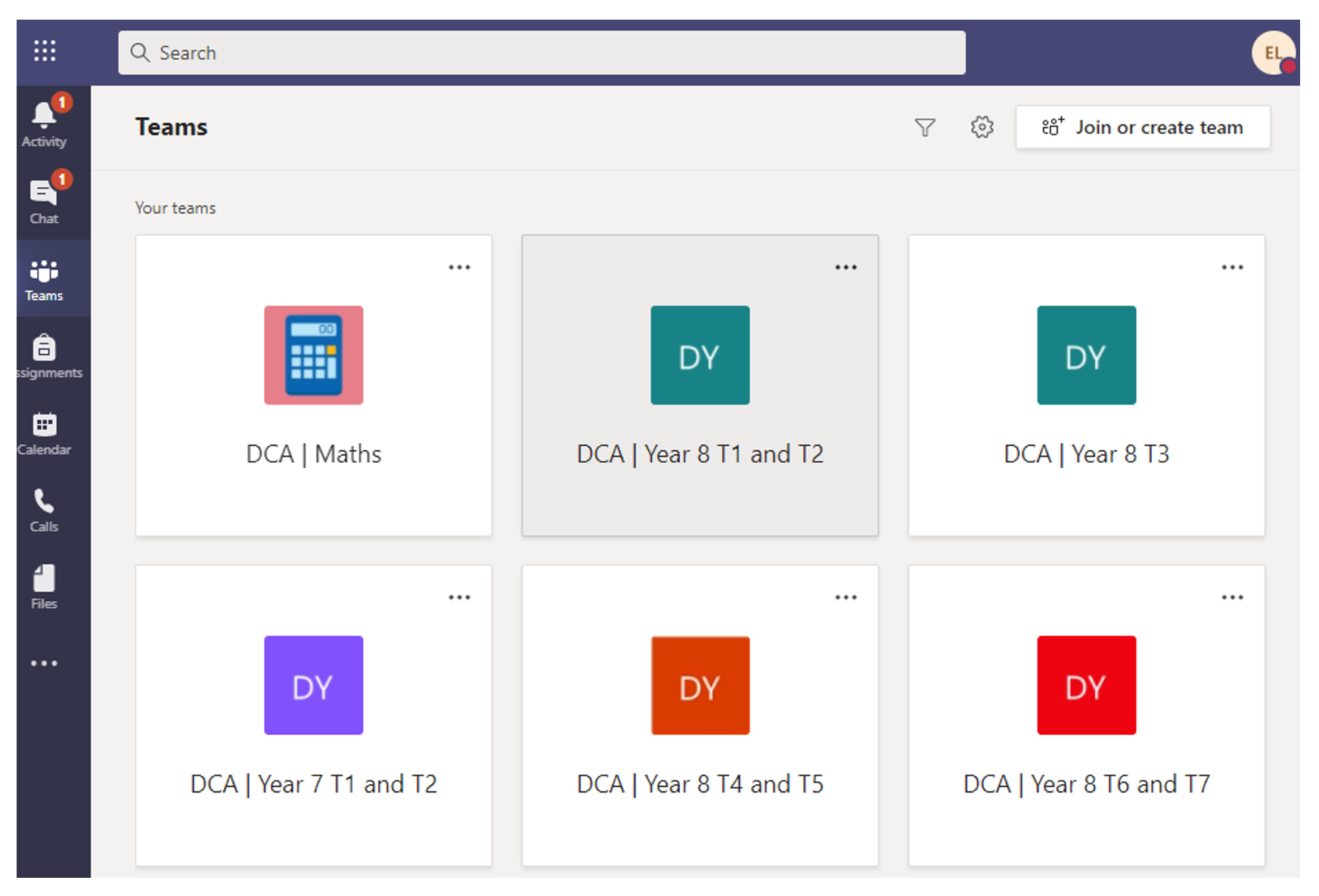 Accessing Microsoft Teams
Once signed in, the Teams home page will open and display the Teams (classes) you have access to. Simply click on the Team you are joining for the lesson to open it.
Now choose the channel for the subject you are attending. See the calendar for online lessons for your year group.
You can join through your calendar as usual, either through Outlook or Teams
Your teacher will have sent you an invitation. Just click on the invitation and wait to be admitted.
- Open your calendar, either via Outlook calendar or your calendar on Teams
- Click on the evening to view it and click on the link in the description that says, "JOIN MICROSOFT TEAMS MEETING".
- Now mute your microphone and switch off your video. This reduces audio feedback.
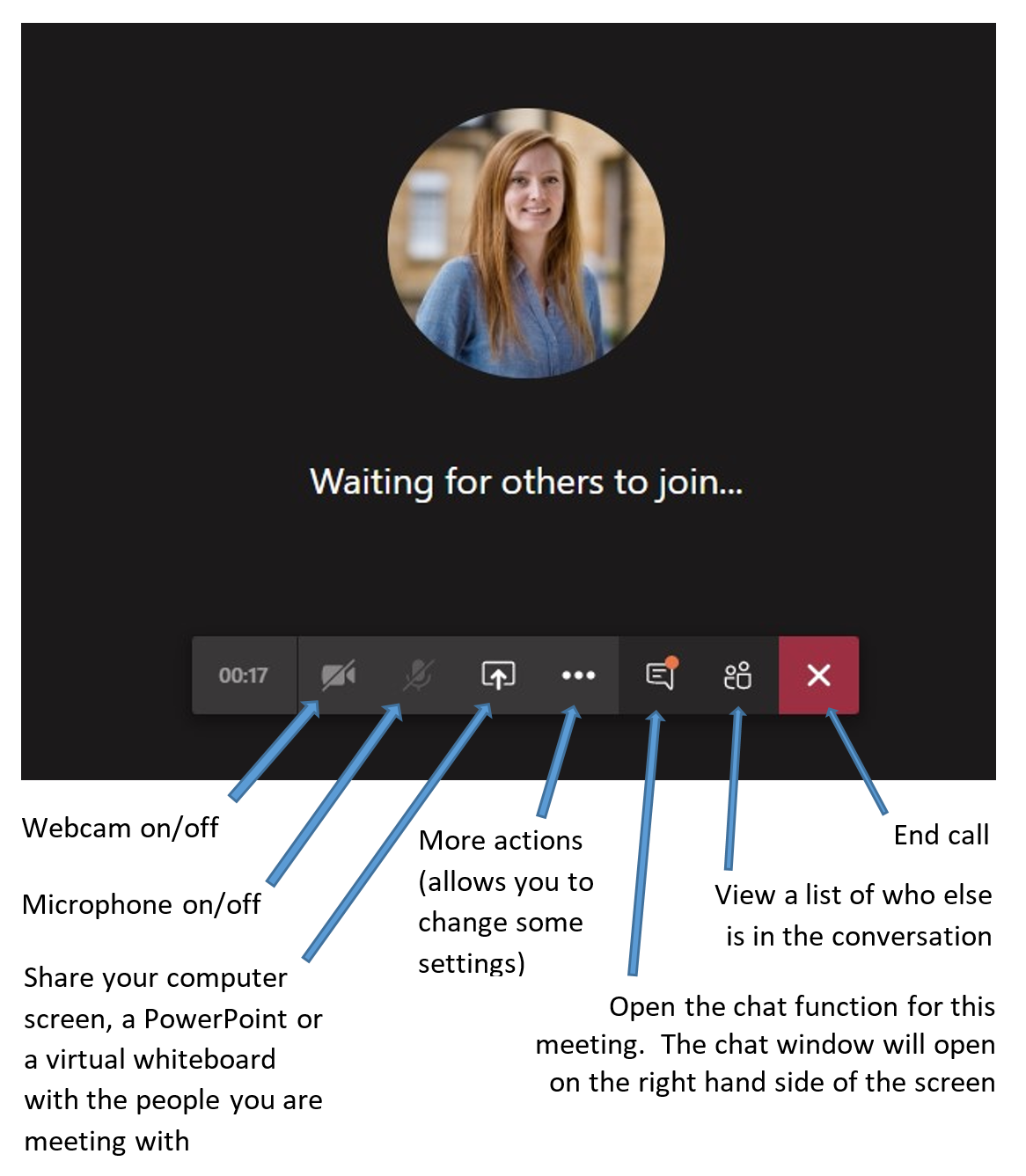
Navigating a Meeting on Teams
Completing an Assignment on Microsoft Teams
 Visit our Trust website
Our Family of Schools
-

Castle View Primary School
-

Chellaston Academy
-

City of Derby Academy
-

Djanogly City Academy
-

Djanogly Northgate Academy
-

Djanogly Sherwood Academy
-

Djanogly Strelley Academy
-

Kensington Junior Academy
-

Hilltop Primary Academy and Nursery
-

Laceyfields Academy
-

Langley Mill Academy
-

Morton Primary Academy
-

QEGS Ashbourne
-

Springfield Academy
-

Springfield Junior School